Firmware Update|Spotify Connect Lossless Supported Now
Matrix Audio's new models with large displays received important firmware update again. Including the MS-1 and MS-1 Pre Music Streamer, the NT-1 and TT-1 Digital Audio Transport, the TS-1 Music Streamer, and the MD-1 and MD-1P Music Streamer Integrated Amplifier. This update adds support for Spotify Lossless, enables Spotify Premium subscribers enjoy better sound quality from Natrix Audio streamers. At the same time, we optimized the CD ripping function, enhanced the products' using experience and applicability. This further solidifies Matrix Audio's brand image as a relentless pursuer of ultimate sound sources in the Hi-Fi audio field.
1.Added support for Spotify lossless
After this firmware update, you'll be able to playback music from Spotify in lossless quality.

Operation Steps:
①Tap on the [Spotify Connect Icon] in the playing page.
②Tap on the device name of Matrix Audio music streamer .
③Tap on [Change quality settings] option.
④Select [Lossless].
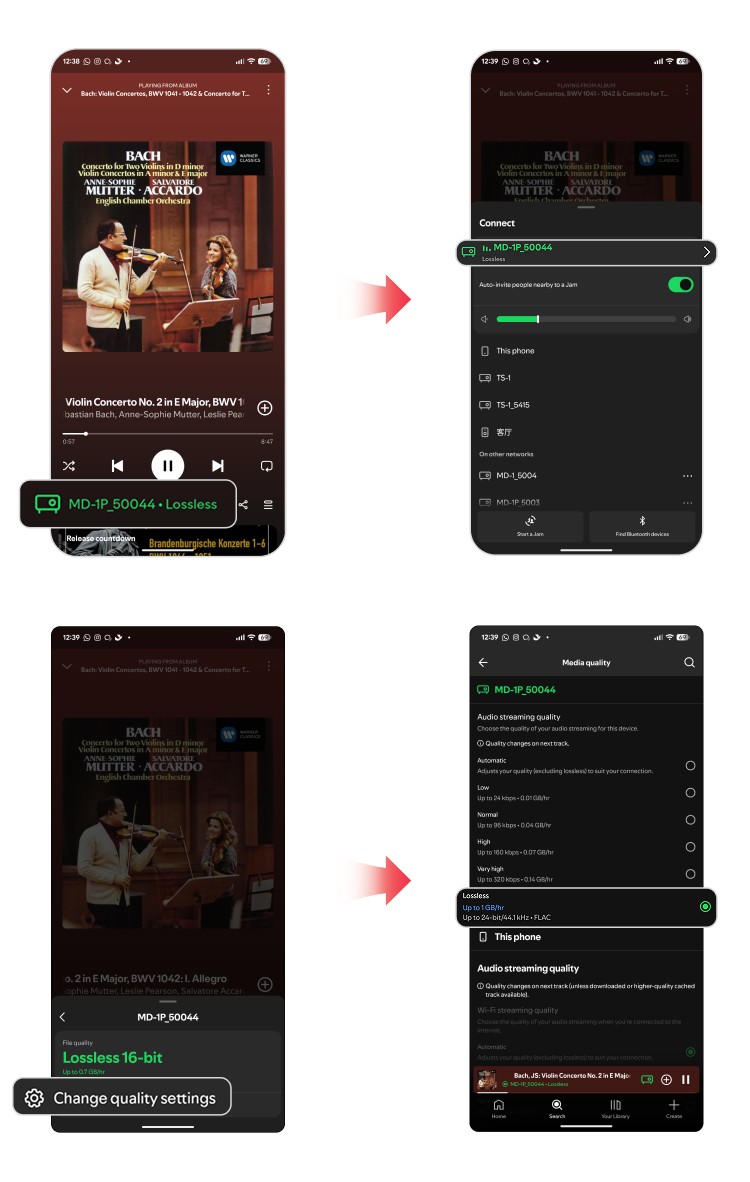
Feature Details:
①Before enabling lossless quality, please ensure your Matrix Audio device is connected via Spotify Connect.
②If you are have subscribed to Spotify Premium, you can now start enjoying lossless audio easily.
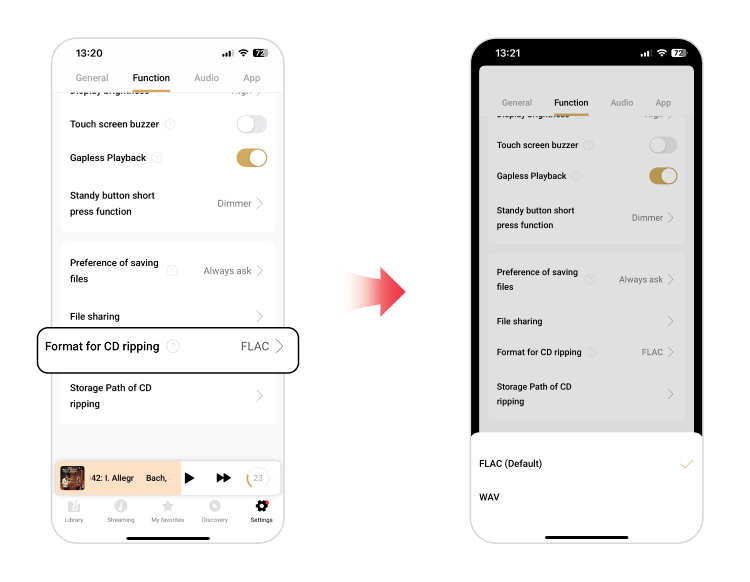
2.Added file format options for CD ripping
In previous firmware versions, the CD ripping function of Matrix Audio streamers only supported the FLAC format. After this update, the CD ripping function supports both FLAC and WAV formats.
Operation Steps:
Open the MA Romote App, go to [Settings - Function ] → [Format for CD Ripping]. You can now choose between FLAC and WAV.
3.Added option to customize the save path for CD ripping
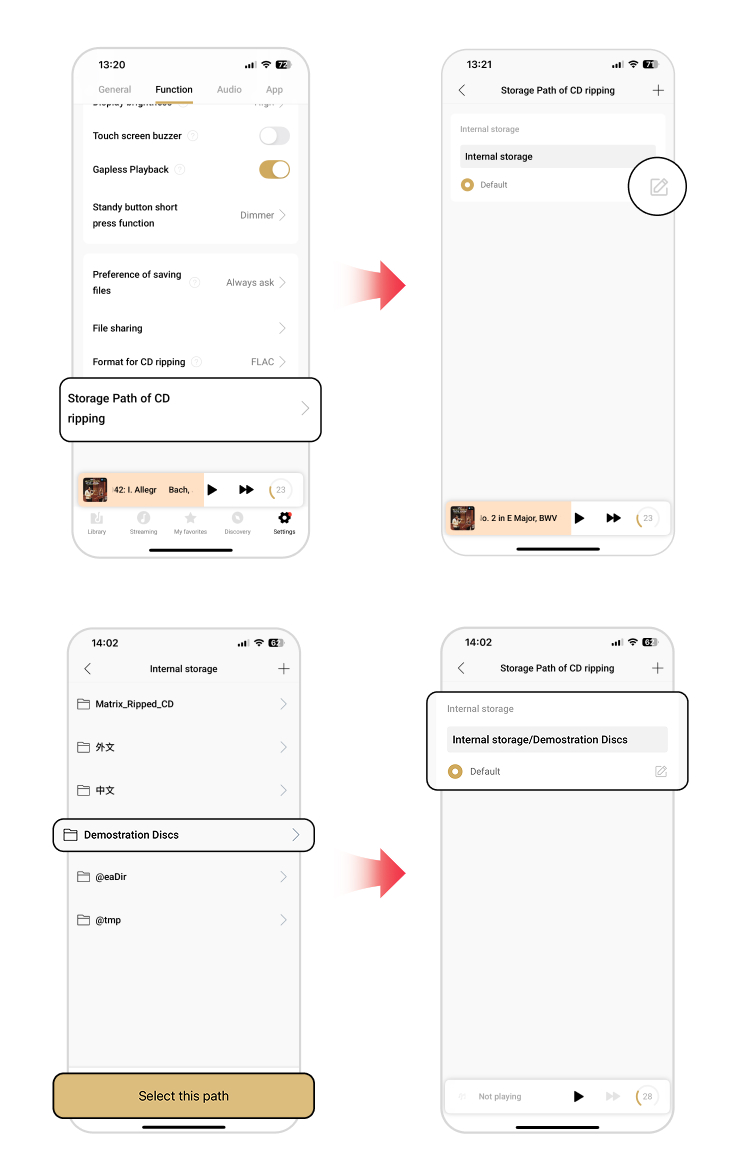
In previous firmware versions, the CD ripping function only supported saves to the internal SSD. After this update, the CD ripping function now supports saving to USB drives and NAS in addition to the internal storage, and allows for custom folders.
Operation Steps:
①Internal Storage Path Setting:
[Settings-Function] → [Storage Path of CD Ripping] → [Edit] → Select folder or create a new folder → Set as [Default]
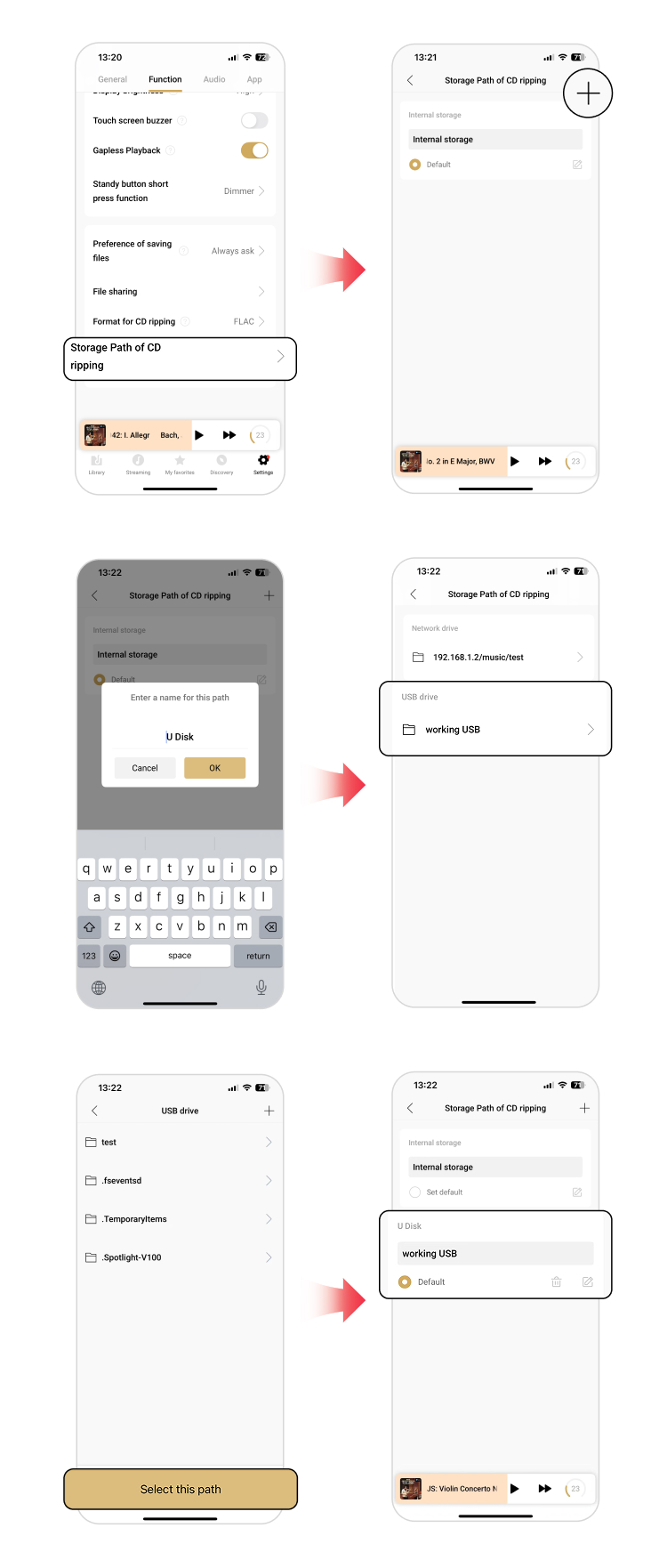
②USB Drive Path Setting:
[Settings - Function] → [Storage Path of CD Ripping] → Create New USB Path → Select USB Drive → Select or Create New Folder → Set as [Default]
③NAS Path Setting:
[Settings - Function] → [Storage Path of CD Ripping] → Create New NAS Path → Select NAS → Select/Create New Folder → Set as [Default]
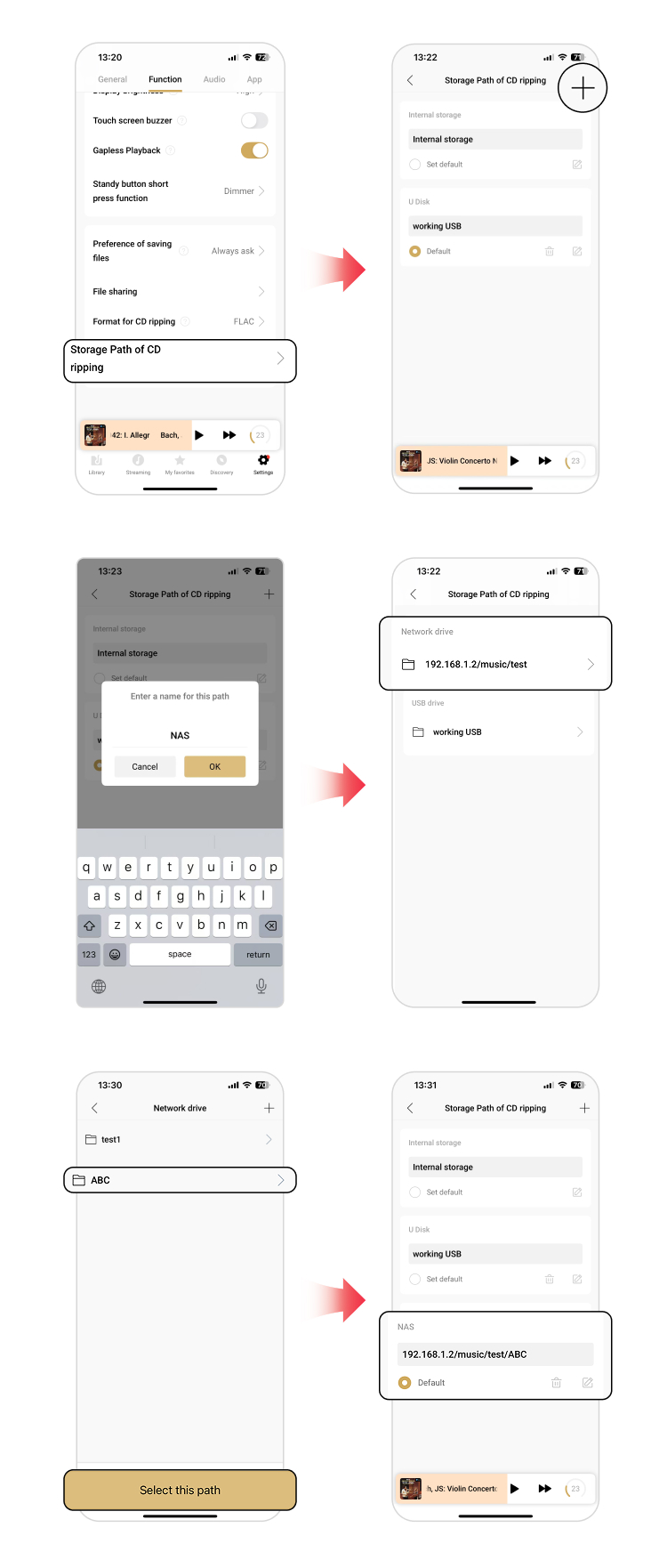
Feature Details:
①Before creating a new storage path in a USB drive, connect the USB drive to the Matrix Audio streamer first.
②Before creating a new storage path in a NAS drive, add the NAS from the MA Remote App first.
③When the root directory of USB drive is set as the saving path, re-configuration is not required after replacing the USB drives. This means that you'll no need to configure the path again when you changed the USB drive.
④The app saves up to 20 paths.
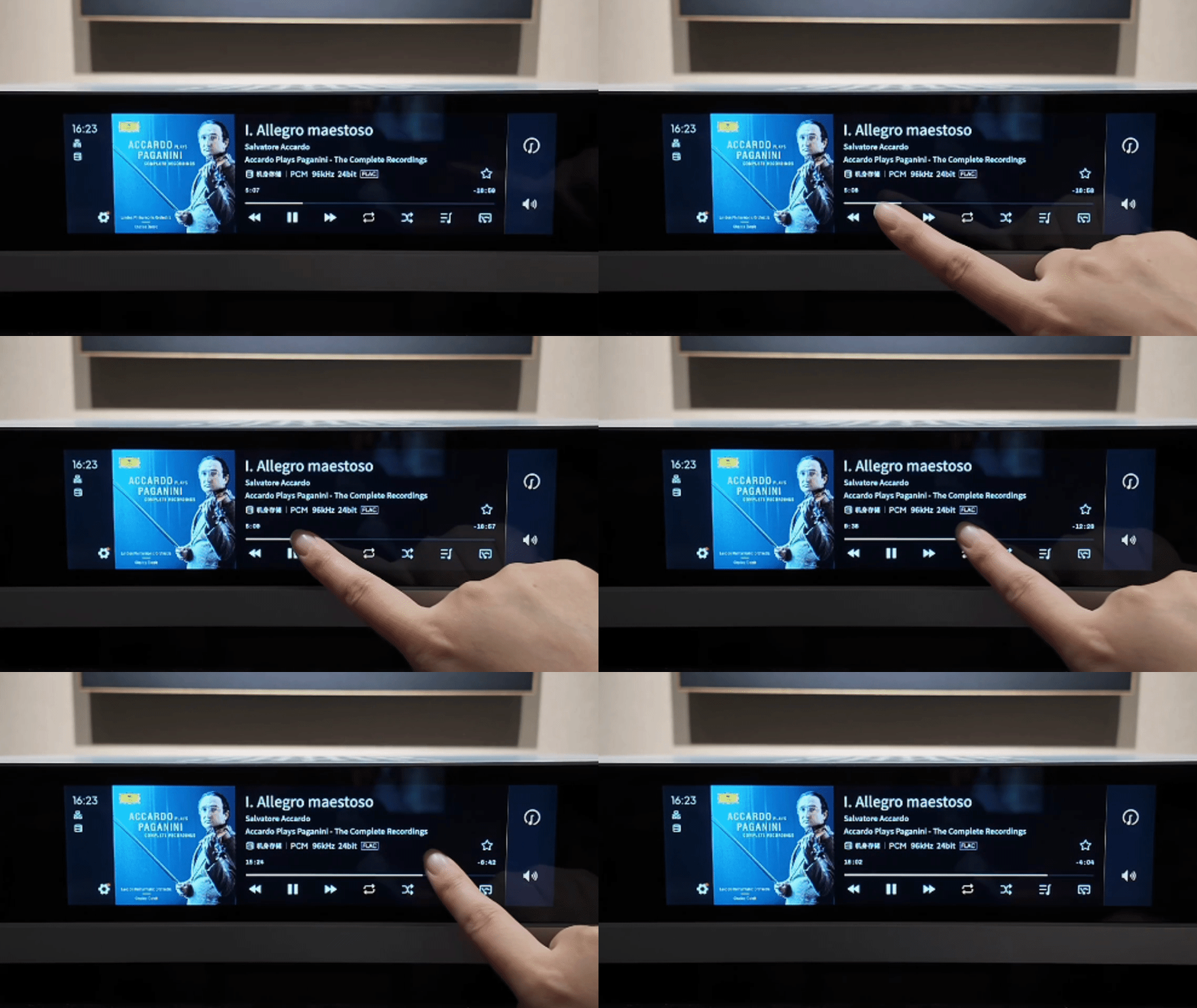
4.Enable to seek by dragging the progress bar on the device screen
The new firmware enables drag the progress bar on the device touch screen. Makes music listening more convenient and enjoyment more pure!
5.Optimized the album copy function
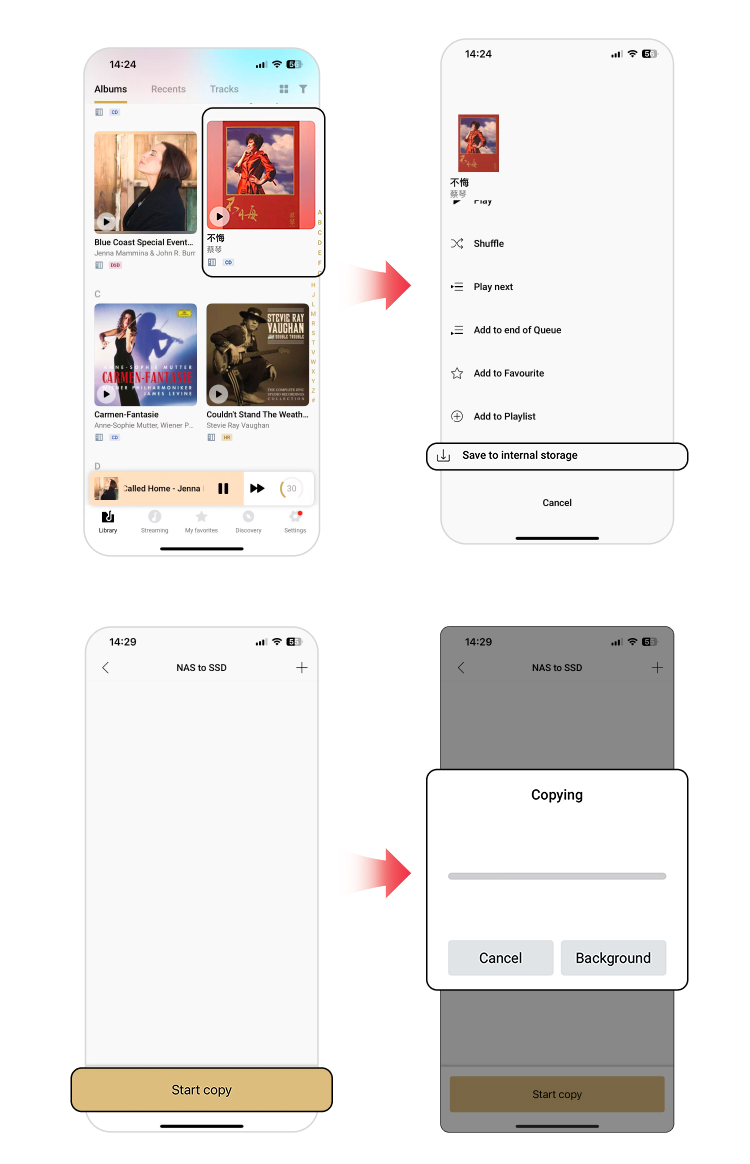
Before the update, the music copy function can only be done in Resource settings. This new function enables you to copy albums directly in the Library.
Operation Method:
Select Album → [Long Press] to open the operation menu → Select [Save to internal storage ] → Select target folder → [Start Copy].
More changes in the new firmware:
Save track numbers to music files when ripping CDs.
Fixed an issue where some 32-bit music files were incorrectly displayed the bit depth.
MA Player Update Guide
You can directly update the new firmware via the MA Remote App: Open the App → Tap [Settings - General] → Select [Check for Update] → Confirm the firmware is the latest version listed below and proceed with the update.
MS-1, MS-1 Pre:1.1.3 Build184
MD-1, MD-1P:1.0.5 Build067
NT-1, TT-1:1.0.9 Build138
TS-1:1.0.5 Build082
You can also update the firmware from the [Update] option in the device's settings menu.